A computer that once felt fast can gradually turn into a source of daily frustration: windows take seconds to open, the browser stutters, and the fan seems to run constantly. In most cases, slowness is not a sign that the machine is dying. It is usually the result of accumulated software, resource bottlenecks, or simple maintenance that has been postponed. Understanding the common reasons your computer runs slowly makes it much easier to decide what to fix, what to upgrade, and when replacing the device genuinely makes sense.
This guide walks through the most frequent causes of sluggish performance on Windows and macOS machines, explains how each one affects speed, and offers practical steps you can take. It focuses on general, widely applicable advice rather than product-specific troubleshooting.
Too Many Programs Starting With the Computer
One of the most common culprits is startup bloat. Many applications configure themselves to launch automatically when the system boots, ostensibly to make them open faster. Chat apps, cloud storage clients, update helpers, game launchers, and printer utilities can all pile up. Each one consumes memory and processor time, and the effect compounds: the desktop appears quickly, but the system remains busy for minutes afterward.
On Windows, the Task Manager includes a Startup tab that lists these programs and shows their estimated impact. Disabling non-essential entries there is safe and reversible. On macOS, the equivalent list lives in System Settings under General > Login Items. A good rule of thumb is to keep only security software and anything you genuinely need at login, and to launch everything else on demand.
Not Enough Memory (RAM) for Modern Workloads
Memory is often the first hardware limit people hit. Operating systems and browsers have grown considerably more demanding. A machine with 4 GB of RAM that felt adequate a decade ago will struggle with a dozen browser tabs, a video call, and a document open at once. When physical memory fills up, the system starts swapping data to the drive, which is far slower and produces the classic symptom of a machine that freezes momentarily when switching between tasks.
Signs of memory pressure include:
- Constant disk activity even when you are not saving files
- Slowdowns when many tabs or applications are open
- The system becoming responsive again after closing programs
- In Windows, high memory usage in Task Manager; in macOS, memory pressure shown in Activity Monitor
If memory is the bottleneck, adding or upgrading RAM is often the single most cost-effective improvement, provided the device allows it. Many modern thin laptops solder memory to the board, in which case reducing the number of simultaneously open applications is the practical alternative.
A Full or Aging Hard Drive
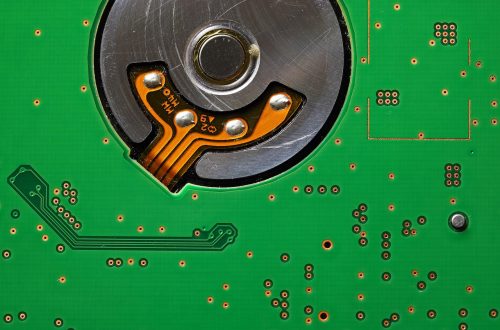
Storage affects speed in two ways. First, capacity: operating systems need free space for temporary files, updates, and virtual memory. When a drive is nearly full, performance degrades noticeably. Second, technology: traditional mechanical hard drives are dramatically slower than solid-state drives (SSDs). A computer still running its operating system from a spinning disk will feel sluggish at almost every task, from booting to opening applications.
Upgrading from a hard drive to an SSD is one of the most transformative changes you can make to an older machine, often making it feel new for a fraction of the cost of a replacement. If an upgrade is not possible, regularly clearing space, emptying the recycle bin or trash, and removing large unused files can help. Built-in tools such as Windows Storage Sense or macOS storage recommendations can automate some of this housekeeping.
Background Processes, Updates, and Sync Tools
Sometimes the slowdown is temporary and has an obvious cause: a large operating system update downloading in the background, a cloud drive syncing thousands of photos, a scheduled antivirus scan, or a backup running. These tasks compete for disk, network, and processor time. If the computer is slow only at certain times, check whether maintenance tasks are scheduled for those moments and adjust them.
Persistent background activity is a different matter. Toolbars, helper utilities, and forgotten applications can run continuously. Reviewing installed programs and removing ones you no longer use reduces this load. On both major platforms, the task manager or activity monitor shows which processes are consuming the most CPU, memory, and disk, which is the fastest way to identify a persistent offender.
Malware and Unwanted Software
Malicious or unwanted software is a well-known cause of poor performance. Some threats mine cryptocurrency, display intrusive ads, or redirect browsing, all while consuming resources. Even legitimate-looking bundled software installed alongside free downloads can add background processes and browser extensions.
Warning signs worth taking seriously include:
- Sudden, unexplained slowdowns combined with unfamiliar programs or browser toolbars
- Frequent pop-ups or changes to your home page and search engine
- The fan running loudly while the machine is idle
- Security software disabled without your action
Running a full scan with reputable security software, removing unfamiliar browser extensions, and uninstalling programs you do not recognize are sensible first steps. Keeping the operating system and applications patched closes many of the holes such software exploits.
Overheating and Thermal Throttling
Processors are designed to slow themselves down when they get too hot, a protective behavior called thermal throttling. Dust-clogged vents, a failing fan, or a laptop used on soft surfaces that block airflow can all cause overheating. The result is a machine that performs well for a few minutes and then becomes sluggish, often with a loud fan.
Cleaning vents, ensuring the device sits on a hard surface, and using a cooling pad for laptops can help. On desktop computers, internal dust removal is straightforward for anyone comfortable opening the case; otherwise, a professional cleaning is inexpensive relative to the cost of heat damage.
Fragmented or Cluttered System Files
On traditional hard drives, file fragmentation gradually reduces read speed as the system hunts for pieces of files scattered across the disk. Modern operating systems defragment automatically, but heavily used older machines may still benefit from a manual optimization. SSDs should not be defragmented; they rely on a different maintenance process called TRIM, which modern systems handle automatically.
Beyond fragmentation, accumulated temporary files, logs, and old update caches take up space and can occasionally cause issues. Built-in cleanup tools are sufficient for most users; aggressive third-party “registry cleaners” are rarely necessary and can sometimes do more harm than good.
Outdated Software and Drivers
An outdated operating system or graphics driver can cause performance problems, particularly with video playback, games, and modern applications that expect newer features. Updates also deliver security fixes and efficiency improvements. Enabling automatic updates for the operating system and key drivers keeps the machine current with minimal effort.
There is a caveat: very old hardware may not run the latest operating system well. Installing a new OS version on a machine below its minimum requirements often makes things slower, not faster. Check the manufacturer’s supported configuration before major upgrades.
Browser Bloat and Extension Overload
For many people, the browser is where most computing happens, and it is also where slowness is most visible. Each open tab consumes memory, and each extension adds overhead. Extensions that inject ads, manage coupons, or run in the background can be particularly costly. Clearing the cache, removing unused extensions, and closing tabs you are not using often restores responsiveness.
If a single site is slow while others are fine, the problem is likely the site rather than the computer. Comparing behavior in a private browsing window or a different browser is a quick diagnostic.
Power Settings and Hardware Power Saving
Laptops on battery often run in a power-saving mode that deliberately limits processor performance to extend runtime. If a machine feels slow only when unplugged, check the power plan or battery settings and switch to a balanced or high-performance profile when plugged in. Some systems also throttle performance when the battery is in poor health.
An Aging Processor or Integrated Graphics
Sometimes the honest answer is that the hardware is simply old. Software requirements rise over time, and a processor from many years ago may struggle with modern web applications, high-resolution video, or demanding creative software. Integrated graphics can also become a bottleneck for tasks like video editing or gaming.
This is where upgrades stop being cost-effective. If a machine already has an SSD and sufficient memory but still feels slow in everyday tasks, the processor is likely the limiting factor, and a newer device may be the better investment.
Quick Diagnostic Checklist
The table below summarizes common symptoms and the likely causes to investigate first.
| Symptom | Likely cause | First step |
|---|---|---|
| Slow boot, busy for minutes after login | Startup bloat | Disable unnecessary startup apps |
| Freezes when many tabs are open | Insufficient RAM | Check memory usage; consider an upgrade |
| Generally sluggish, long file operations | Mechanical hard drive | Consider an SSD upgrade |
| Loud fan, slowdown after a few minutes | Overheating | Clean vents and improve airflow |
| Pop-ups, unfamiliar toolbars | Malware or unwanted software | Run a full security scan |
| Slow only on battery | Power-saving mode | Adjust power settings |
| Slow only at certain times | Background updates or backups | Reschedule maintenance tasks |
When to Repair and When to Replace
A useful way to decide is to identify the bottleneck first. If the machine has a mechanical drive, adding an SSD and more memory can extend its useful life by years at modest cost. If it already has an SSD, adequate memory, and clean cooling, yet still struggles with everyday tasks, further spending rarely pays off.
Regular maintenance, sensible startup habits, and keeping software updated prevent most slowdowns. When performance does degrade, working through the causes above in order, from the simplest software fixes to hardware limits, usually reveals the problem quickly and points to a practical solution.
Illustrative stock photo: Peggychoucair / Pixabay.