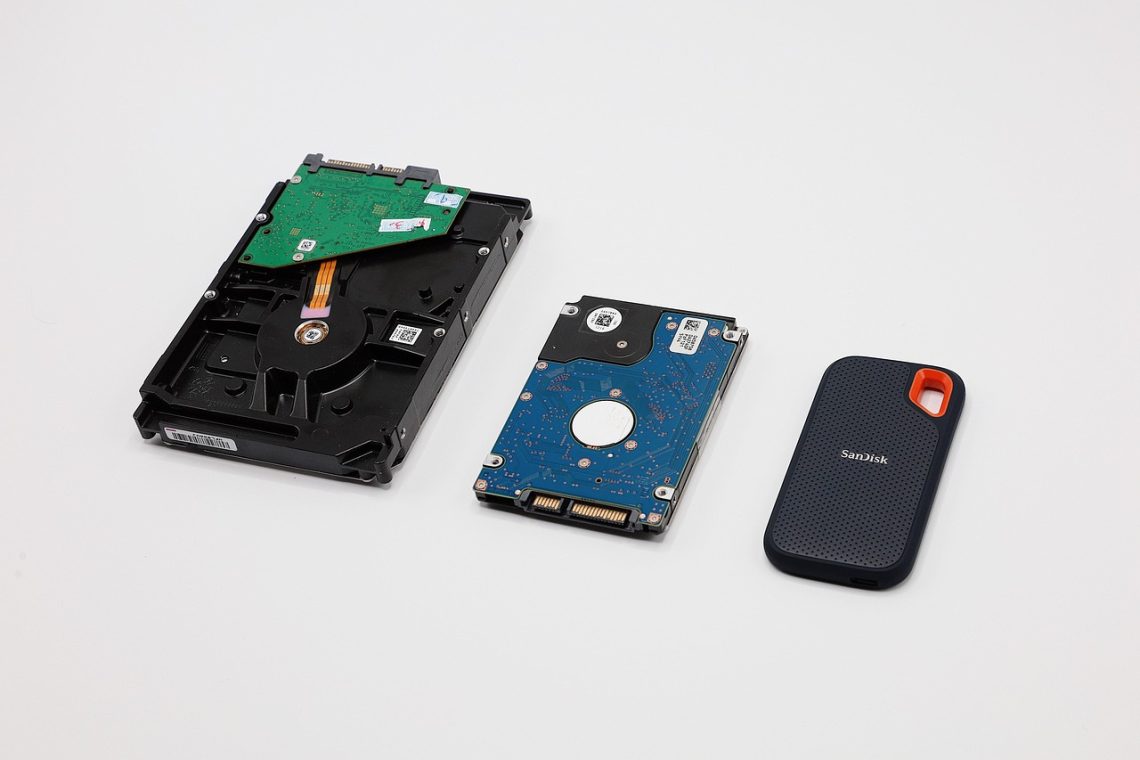
Photos and important documents are among the few digital files that are genuinely irreplaceable. A phone can be replaced, but a decade of family pictures, a scanned will, or the only copy of a signed contract cannot. Yet most people back up inconsistently — or not at all — until a drive fails or a device is lost. This guide explains a reliable, repeatable backup system you can set up in an afternoon and maintain with minimal effort.
Start With the 3-2-1 Rule
The 3-2-1 rule is the backbone of sensible backup planning, and it applies just as well to a home user as to an IT department:
- 3 copies of every important file — the original plus two backups.
- 2 different types of storage media — for example, an external hard drive and a cloud service.
- 1 copy off-site — physically somewhere else, so a fire, flood, or theft cannot destroy everything at once.
Cloud storage naturally satisfies the off-site requirement. An external drive kept at home covers fast local recovery. Together they give you redundancy without much complexity.
Know What You Are Protecting
Before choosing tools, list what matters. Most people’s critical files fall into a few groups:
| Category | Examples | Typical size |
|---|---|---|
| Personal photos and video | Phone camera roll, scanned family albums, event videos | Large (tens to hundreds of GB) |
| Identity and legal documents | Passport scans, birth certificates, wills, contracts | Small (MB) |
| Financial records | Tax returns, bank statements, receipts | Small to medium |
| Work and creative files | Documents, spreadsheets, design projects | Medium to large |
| Account recovery information | Password manager exports, recovery codes | Very small, highly sensitive |
Photos usually dominate storage, while documents matter most for their legal and financial value. Treat them differently: photos need capacity, documents need security.
Backing Up Photos
Use Your Phone’s Cloud Sync — Then Verify It
Both major mobile platforms offer automatic photo backup tied to a cloud account. Turn it on, confirm it covers videos as well as stills, and check that uploads complete over Wi-Fi. The common failure is assuming sync is running when it has silently paused — for example, after a storage quota is reached or a password change. Open the service periodically and confirm recent photos appear in the cloud library.
Copy From Camera or Phone to a Computer Regularly
Cloud sync is convenient but should not be your only copy. Import photos to a computer or external drive on a schedule — monthly is reasonable for most people, more often for frequent photographers. Keep the folder structure simple and consistent, such as year and event, so future backups capture everything without manual sorting.
Consider a Dedicated Photo Service as a Second Cloud
General cloud drives are fine for storage, but photo-specific services add albums, facial recognition, and easier sharing. Using one photo service plus one general cloud account gives you two independent off-site copies. Avoid relying on a single provider for everything: account lockouts and billing problems do happen.
Backing Up Important Documents
Scan Paper Records Properly
For documents that exist only on paper, scan at a readable resolution (around 300 dpi is a good default), save as PDF, and name files descriptively — for example, 2024-tax-return.pdf rather than scan001.pdf. Store the originals safely as well; a digital copy is a backup, not a legal substitute in every situation.
Keep a Structured Document Folder
Create one master folder with clear subfolders: Identity, Finance, Property, Insurance, Medical, and Legal. Put every scan there. A tidy structure makes backups predictable and makes it far easier to find a document in an emergency.
Encrypt Before You Upload
Identity documents and financial records are exactly what identity thieves want. Before placing them in cloud storage:
- Use a reputable cloud provider with encryption in transit and at rest.
- Put sensitive files inside an encrypted archive or encrypted vault folder, with a strong passphrase stored in a password manager.
- Enable two-factor authentication on every account that holds backups.
- Never email unencrypted scans of passports or tax records to yourself as a “backup.”
Keep the encryption passphrase somewhere you can access without the backed-up device — otherwise encryption becomes data loss.
Choose Your Storage Options
| Option | Strengths | Watch-outs |
|---|---|---|
| Cloud storage | Off-site, automatic, accessible anywhere | Subscription cost, upload speed, account security |
| External hard drive | Fast, cheap per gigabyte, works offline | Can fail; vulnerable to theft, fire, and drops |
| Solid-state drive | Durable, fast, pocket-sized | Higher cost per gigabyte |
| NAS (network drive) | Central household backup, often RAID-protected | Requires setup and maintenance; RAID is not a backup |
| Optical media | Long shelf life for archival copies | Low capacity, slow, needs a reader |
A practical combination for most households: automatic cloud backup for phones and documents, plus a large external drive at home for the full photo library, plus a second drive or cloud copy stored elsewhere.
Set Up Automatic Backups
Manual copying is the weakest link because it depends on remembering. Use built-in tools where possible:
- Windows: File History or the backup features in Settings can copy chosen folders to an external drive on a schedule.
- macOS: Time Machine creates versioned backups to an external drive and can rotate between multiple destinations.
- Phones: Enable automatic cloud photo sync and confirm it runs on Wi-Fi.
- Cloud drives: Install the desktop sync client and place your master document folder inside it.
Schedule local drive backups at least weekly. If the drive is portable, plug it in on a fixed day — for example, every Sunday evening — so the habit sticks.
Follow the Right Backup Rhythm
Different files change at different rates, so match frequency to importance:
- Daily or continuous: cloud sync for documents and phone photos.
- Weekly: local drive backup of the computer.
- Monthly: copy the photo library to the external drive and refresh the off-site copy.
- Yearly: review the whole system, replace aging drives, and update account recovery details.
Test Your Backups — the Step Everyone Skips
An untested backup is a hope, not a plan. Once a quarter, restore something real: open a document from the cloud, copy a photo folder from the external drive to a temporary location, and confirm the files open correctly. Check that encrypted archives decrypt with your stored passphrase. This takes ten minutes and catches the most common failures — a drive that was never plugged in, a sync folder that stopped updating, or a forgotten password.
Protect Backups From Ransomware and Accidental Deletion
Backups can be damaged by the same mistakes that threaten your originals. Reduce the risk:
- Keep at least one backup disconnected or offline most of the time, so malware cannot encrypt it.
- Use versioned cloud storage or backup software that keeps multiple historical versions, allowing recovery of a file deleted or corrupted weeks ago.
- Do not store the only copy of anything on the same drive as the original.
- Be cautious with “sync” as a backup strategy: if you delete a file locally, sync may delete it everywhere. Version history is what saves you.
Handle the Sensitive Extras
Some information deserves special treatment:
- Password manager: export an encrypted backup occasionally and store it offline in a secure place.
- Recovery codes: print or write two-factor recovery codes and keep them with your important papers, not only in the cloud.
- Estate documents: tell a trusted person where backups and passphrases are kept, or use a sealed emergency-access plan with your password manager.
A Simple Plan You Can Start Today
- Create one master folder for important documents and scan anything paper-only.
- Turn on automatic photo backup on your phone and verify it is uploading.
- Buy or repurpose an external drive and run a full backup of your computer.
- Copy the document folder into an encrypted archive and upload it to a reputable cloud service with two-factor authentication enabled.
- Arrange one off-site copy — a second drive kept at a relative’s home or a second cloud account.
- Put a recurring reminder in your calendar for a monthly copy and a quarterly restore test.
The best backup system is not the most elaborate one; it is the one that runs automatically, stores copies in more than one place, and gets checked occasionally. Set it up once, verify it works, and you will never have to rely on luck to keep your photos and documents safe.
Illustrative stock photo: tonywuphotography / Pixabay.