Few home technology frustrations are as universal as the Wi-Fi dead zone. The router sits in the living room, the signal is strong at the kitchen table, and then the bedroom, the garage, or the upstairs office becomes a buffering wasteland. Before you buy new hardware or call your internet provider, it helps to understand that weak coverage is almost always one of three things: the signal has to travel too far, something is blocking or interfering with it, or the router itself cannot handle the load.
This guide walks through the practical steps for improving Wi-Fi coverage at home, from free fixes you can try in an afternoon to hardware upgrades worth considering when the basics are not enough. It focuses on how Wi-Fi actually behaves in a typical house, so you can make decisions based on your own layout rather than guesswork.
Start by Diagnosing the Problem
Improving coverage begins with knowing where and why it fails. A common mistake is to assume that a slow connection in one room means the internet service is too slow. In reality, the connection between your device and the router is often the bottleneck, not the connection between the router and your provider.
Map your dead zones
Walk through your home with a phone or laptop and note where the signal drops, where speeds fall noticeably, and where video calls stutter. Test at different times of day, since neighbors’ networks and household usage change. Pay attention to whether the problem is coverage (the signal is weak or absent) or capacity (the signal is strong but speeds collapse when several devices are active). These two problems have different solutions.
Distinguish Wi-Fi problems from internet problems
A quick way to separate the two is to run a speed test while standing close to the router, then repeat it in the problem room. If the speed near the router matches your plan and the speed far away does not, the issue is your Wi-Fi coverage. If speeds are poor even next to the router, the problem may be your internet service, the modem, or the router’s own performance.
Check the basics first
- Restart the router and modem. A simple reboot clears memory issues and re-establishes connections.
- Update router firmware. Manufacturers release fixes for stability and security through the router’s admin interface or companion app.
- Confirm your device is on the right band. Many devices default to the 2.4 GHz band, which travels farther but is slower than 5 GHz.
- Look for obvious obstructions. A router buried behind a TV, inside a cabinet, or on the floor is working against you.
Optimize Router Placement
Placement is the single most impactful free change most households can make. Wi-Fi radio waves spread outward from the router and weaken with distance and with every obstacle they pass through.
Put the router in the open, central, and elevated
The ideal spot is roughly central to the area you want to cover, in the open, and off the floor. Radio waves radiate outward and slightly downward from most routers, so a shelf or a high table often works better than a low corner. Avoid closets, cabinets, and metal enclosures, which act like shields.
Watch out for signal absorbers and reflectors
Certain materials are especially hostile to Wi-Fi:
| Obstacle | Effect on signal |
|---|---|
| Concrete and brick walls | Strong attenuation, especially with rebar or foil-backed insulation |
| Metal appliances, ducts, and studs | Reflect or block signal; can create shadow zones |
| Mirrors and tinted windows | Reflect signal and can cause dead spots |
| Aquariums and large water containers | Absorb signal significantly |
| Cordless phones, microwaves, baby monitors | Interfere, particularly on 2.4 GHz |
You cannot remove a load-bearing wall, but you can often move the router a meter or two to steer the signal around a major obstruction. In multi-story homes, placing the router near the ceiling of the ground floor or near the floor of the upper floor can help the signal reach the level above or below.
Antenna orientation matters
If your router has external antennas, orient them thoughtfully. Antennas radiate strongest perpendicular to their length, so a mix of vertical and slightly angled antennas often covers a room better than all antennas pointing the same way. If the router is mounted flat against a wall, check the manual for the recommended orientation.
Reduce Interference and Tune Your Settings
Even a well-placed router can struggle if the airwaves are crowded. In apartments and dense neighborhoods, dozens of neighboring networks compete for the same channels.
Choose the right band for each device
Modern routers typically broadcast on 2.4 GHz and 5 GHz, and newer models add a 6 GHz band. Each has trade-offs:
- 2.4 GHz travels farther and penetrates walls better, but it is slower and more crowded.
- 5 GHz offers faster speeds and less interference but has a shorter range and struggles with walls.
- 6 GHz (Wi-Fi 6E and Wi-Fi 7) is fast and clean but has the shortest range of all.
For devices far from the router, 2.4 GHz may be the only usable option. For devices near the router, forcing 5 GHz or 6 GHz improves speed and reduces congestion. Many routers let you split the bands into separate network names so you can choose manually.
Pick a less crowded channel
On 2.4 GHz, only channels 1, 6, and 11 are non-overlapping in most regions, so choose whichever is least used. Free Wi-Fi analyzer apps for phones and laptops show nearby networks and their channel usage. On 5 GHz, more channels are available and interference is less of an issue, but a quick scan can still reveal a better choice. Many routers have an auto-channel setting; it works reasonably well, but manual selection can help in stubborn cases.
Adjust channel width and transmit power
Wider channels (such as 80 MHz or 160 MHz on 5 GHz) deliver more speed but are more susceptible to interference and have slightly shorter effective range. If stability matters more than peak speed, a narrower channel can help. Transmit power settings are less commonly useful, but in a small apartment, lowering power can sometimes reduce interference between your own access points.
Use the Right Hardware for Your Home
When placement and settings are optimized and coverage still falls short, hardware is the next lever. The right choice depends on your home’s size, construction, and layout.
When a single router is enough
In a small apartment or a compact single-story home, a modern router placed centrally may cover everything. If your router is several years old, an upgrade to a current Wi-Fi 6 or Wi-Fi 7 model can improve both range and capacity, especially if many devices are connected.
Mesh systems for larger or multi-story homes
A mesh system uses two or more units that work together as a single network, handing devices off as you move around the house. This is usually the most user-friendly solution for multi-story homes and long layouts. Key considerations:
- Placement of nodes: Nodes should be within good range of each other, ideally with one or two walls between them, not at the far edge of the dead zone.
- Backhaul: A wired connection between nodes (Ethernet backhaul) is the most reliable and fastest option. If wiring is impractical, dedicated wireless backhaul on a separate band helps preserve speed.
- Node count: More nodes are not always better; too many can create interference and unnecessary handoffs. Start with two and add only if needed.
Access points and wired options
If your home has Ethernet wiring, adding a wired access point in a distant room can deliver excellent coverage and speed. Powerline adapters and MoCA (Ethernet over coaxial cable) are alternatives when running new cable is difficult. These wired backhaul options often outperform purely wireless extenders.
Wi-Fi extenders: use with caution
Extenders rebroadcast an existing signal. They can fill a small gap, but they typically halve throughput on the extended network and can create a separate network name that devices do not switch to gracefully. They work best when placed in a location with a strong existing signal, not in the dead zone itself.
Reduce Load and Improve Efficiency
Sometimes coverage is fine but performance suffers because too many devices compete for airtime. A few adjustments can help.
- Prioritize important devices. Quality-of-service (QoS) settings let you prioritize video calls, gaming, or work laptops.
- Move heavy devices to wired connections. Smart TVs, game consoles, and desktop computers often perform better on Ethernet, freeing wireless capacity for phones and laptops.
- Disconnect unused devices. Old tablets and smart plugs that stay connected consume airtime even when idle.
- Check for outdated devices. Very old devices using legacy standards can slow the whole network; consider replacing or isolating them.
Consider Professional Help and ISP Equipment
If you have tried the steps above and still have problems, it may be worth checking whether your internet plan and provider equipment are adequate. Some providers supply routers that are underpowered for larger homes, and replacing them with your own router or mesh system can make a significant difference. In homes with unusual construction, such as thick stone walls or metal framing, a professional site survey can identify the best locations for access points.
A Practical Checklist
If you want a clear order of operations, work through this list from least to most expensive:
- Restart and update the router.
- Move the router to a central, open, elevated location.
- Adjust antennas and separate the 2.4 GHz and 5 GHz bands.
- Scan for crowded channels and switch to a clearer one.
- Connect stationary devices by Ethernet where possible.
- Add a mesh node or access point in the problem area.
- Upgrade to a newer router or a mesh system if the hardware is aging.
Most homes see meaningful improvement from the first three steps alone. The key is to change one thing at a time and test the result, so you know what actually worked. With a little patience and attention to placement, interference, and hardware, you can turn a patchy network into reliable coverage throughout your home.
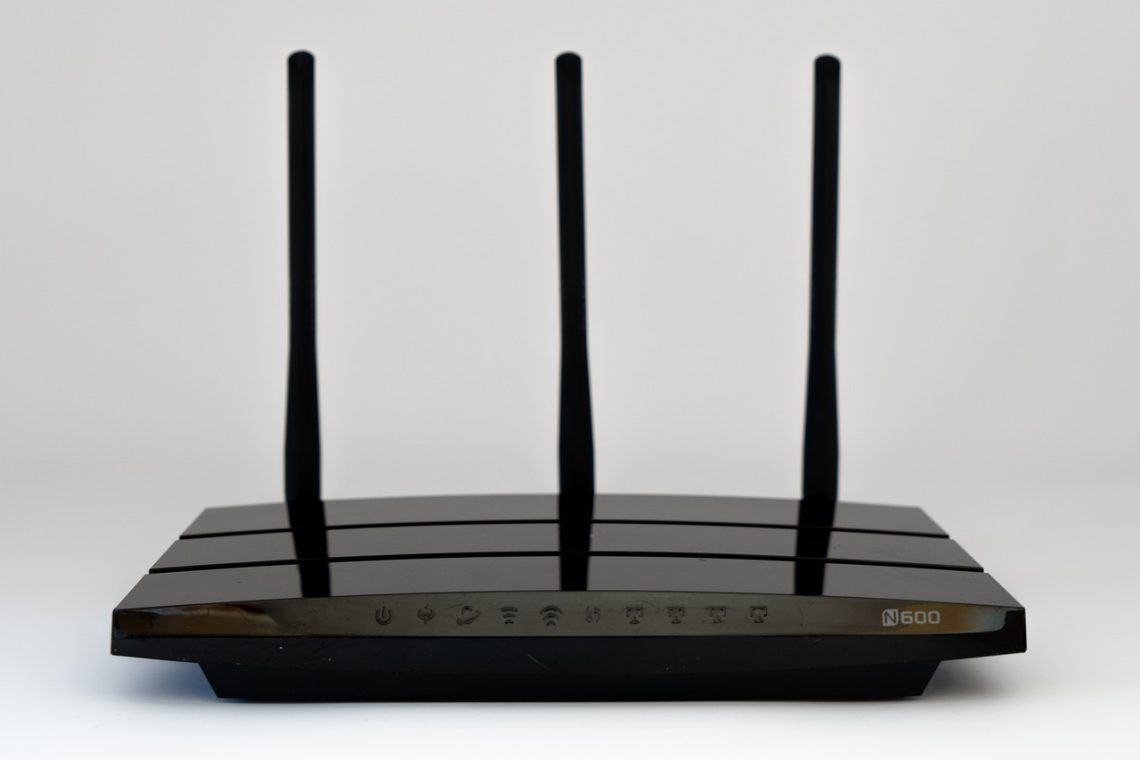
Illustrative stock photo: USA-Reiseblogger / Pixabay.