Phishing remains one of the most common ways attackers gain a foothold in personal and business accounts. Rather than breaking through technical defenses, phishing exploits human trust: a familiar logo, a plausible request, a sense of urgency. The good news is that most phishing emails leave recognizable traces once you know what to look for. This guide walks through the signals worth checking, the tricks attackers use, and a simple routine for handling anything that feels off.
What Makes a Phishing Email Different From Ordinary Spam
Spam is unwanted advertising; phishing is deception with an objective. A phishing email impersonates someone you trust — a bank, a colleague, a delivery company, a software provider — to get you to do something: click a link, open an attachment, enter credentials, approve a payment, or reply with information. The message usually tries to create a reason to act quickly and a reason not to verify.
Because the goal is action, phishing emails tend to combine three ingredients: a believable pretext, a channel for the requested action (link, attachment, phone number), and pressure to bypass your normal caution. Recognizing that pattern is often more useful than memorizing a list of specific scams.
The Warning Signs Worth Checking First
1. The sender address doesn’t match the display name
Email clients show a friendly display name, but the actual address is what matters. A message claiming to be from your bank may come from a free webmail account or a lookalike domain such as paypa1.com instead of paypal.com. On mobile, tap or long-press the sender name to reveal the full address. Watch for:
- Misspellings or extra characters in the domain (hyphens, doubled letters, unusual subdomains).
- Different domains for the same organization across messages.
- Reply-to addresses that differ from the sender address.
Note that display-name spoofing is easy, and even a genuine-looking address can be forged. The sender address is a first filter, not proof of legitimacy.
2. Urgency, threats, and emotional pressure
Phishing depends on you acting before you think. Common pressure tactics include:
- Account suspension or deletion within hours.
- Unusual sign-in alerts or failed payment warnings.
- Legal threats, fines, or “final notice” language.
- Limited-time refunds, prizes, or exclusive offers.
Legitimate organizations do send time-sensitive notices, but they rarely demand immediate action through an email link alone. Treat urgency as a prompt to slow down, not speed up.
3. Generic or slightly wrong greetings
“Dear Customer” from a company that normally uses your name is a classic signal. So is a greeting with the wrong name, a mangled version of it, or an oddly formal tone from a colleague who usually writes casually. Attackers often work from leaked lists with incomplete details.
4. Requests for credentials, payment, or sensitive data
No reputable bank, tax authority, or IT department asks you to confirm a password, full card number, or one-time code by email. Be equally wary of:
- Requests to “verify” an account through a link.
- Unexpected invoices, especially with changed bank details.
- Gift card or wire transfer requests framed as urgent.
- Requests to approve a multi-factor authentication prompt you didn’t initiate.
5. Links that don’t go where they claim
Hover over a link (on desktop) or long-press it (on mobile) to preview the destination. Look at the domain immediately before the first single slash — that’s the actual site. Attackers use tricks such as:
- Subdomains that look like the real brand: yourbank.com.secure-login.example.
- URL shorteners that hide the destination.
- Lookalike characters and homoglyphs.
- Links whose visible text and actual target differ.
If the destination doesn’t match the sender’s organization, stop. Typing the organization’s address into your browser yourself is safer than clicking.
6. Unexpected or risky attachments
Attachments remain a common malware delivery route. Be cautious with files you didn’t expect, particularly:
- Archives (.zip, .rar) containing documents or executables.
- Office files that ask you to “enable macros” or “enable editing.”
- HTML attachments that open a fake login page in your browser.
- Invoices or shipping labels from senders you don’t recognize.
Even familiar file types can be dangerous if the sender is compromised. When in doubt, verify through a separate channel before opening.
7. Tone, formatting, and small inconsistencies
Phishing emails often carry subtle flaws: mismatched logos, low-resolution images, odd spacing, inconsistent fonts, or a signature that doesn’t match the organization’s style. Grammar errors are a signal but not a reliable one — many phishing messages are well written, and legitimate messages can contain typos. Treat these details as part of a pattern rather than a single test.
Common Phishing Scenarios to Recognize
| Scenario | What it looks like | What the attacker wants |
|---|---|---|
| Fake account alert | “Unusual sign-in” or “password expires today” from a bank or cloud service | Credentials entered on a fake login page |
| Invoice fraud | Supplier invoice with updated bank details | A payment redirected to the attacker |
| Delivery notice | “Your parcel is held; pay a small fee” | Card details or a malware download |
| CEO or colleague request | Urgent request from a senior person, often “sent from my phone” | Gift cards, transfers, or sensitive files |
| Shared document lure | “A document has been shared with you” with a login prompt | Credentials via a fake sign-in page |
| Job or refund offer | Too-good-to-be-true opportunity requiring personal details | Identity data or upfront payments |
How to Verify a Suspicious Email
Verification is about using a channel the attacker doesn’t control. A short routine:
- Don’t click, don’t reply, don’t call the number in the email.
- Check the sender address by expanding the header details.
- Navigate independently. Open the organization’s website or app by typing the address yourself or using a saved bookmark.
- Contact the person or organization through a known channel — a phone number from your records, an internal directory, or a separate message thread.
- Ask your IT or security team if you’re at work; they can confirm whether the message is part of a known campaign.
If you already clicked or entered credentials, act quickly: change the affected password, enable or reset multi-factor authentication, and report the message. Speed matters more than embarrassment.
Why Phishing Emails Are Getting Harder to Spot
Several trends make detection less about obvious errors and more about context:
- Better impersonation. Attackers copy real branding, email templates, and writing styles, sometimes using information from social media or previous breaches.
- Compromised legitimate accounts. A message from a real colleague’s real address can still be phishing if their account was taken over.
- Legitimate hosting services. Phishing pages hosted on reputable platforms can pass casual URL checks.
- Multi-channel pressure. An email may be followed by a phone call or text to reinforce the story.
The practical response is to shift from “does this look fake?” to “does this request make sense, and can I verify it independently?”
Everyday Habits That Reduce Risk
- Use multi-factor authentication wherever possible, and prefer app-based or hardware keys over SMS where offered.
- Keep software updated so known vulnerabilities in email clients and browsers are patched.
- Use a password manager. It won’t autofill credentials on a lookalike domain, which is a useful warning sign.
- Slow down on mobile. Small screens hide sender addresses and link previews; open suspicious messages on a larger device if you can.
- Report rather than delete. Reporting helps security teams block campaigns for everyone else.
- Treat unexpected MFA prompts as an alarm. Repeated prompts you didn’t trigger may mean someone has your password.
A Quick Checklist Before You Click
- Do I know the sender, and does the address match?
- Was I expecting this message or attachment?
- Is it asking for credentials, payment, or personal data?
- Is there pressure to act immediately?
- Where does the link actually go?
- Can I verify this through a separate, trusted channel?
If any answer raises doubt, don’t engage with the message. Verify first. A minute spent checking is far cheaper than a compromised account.
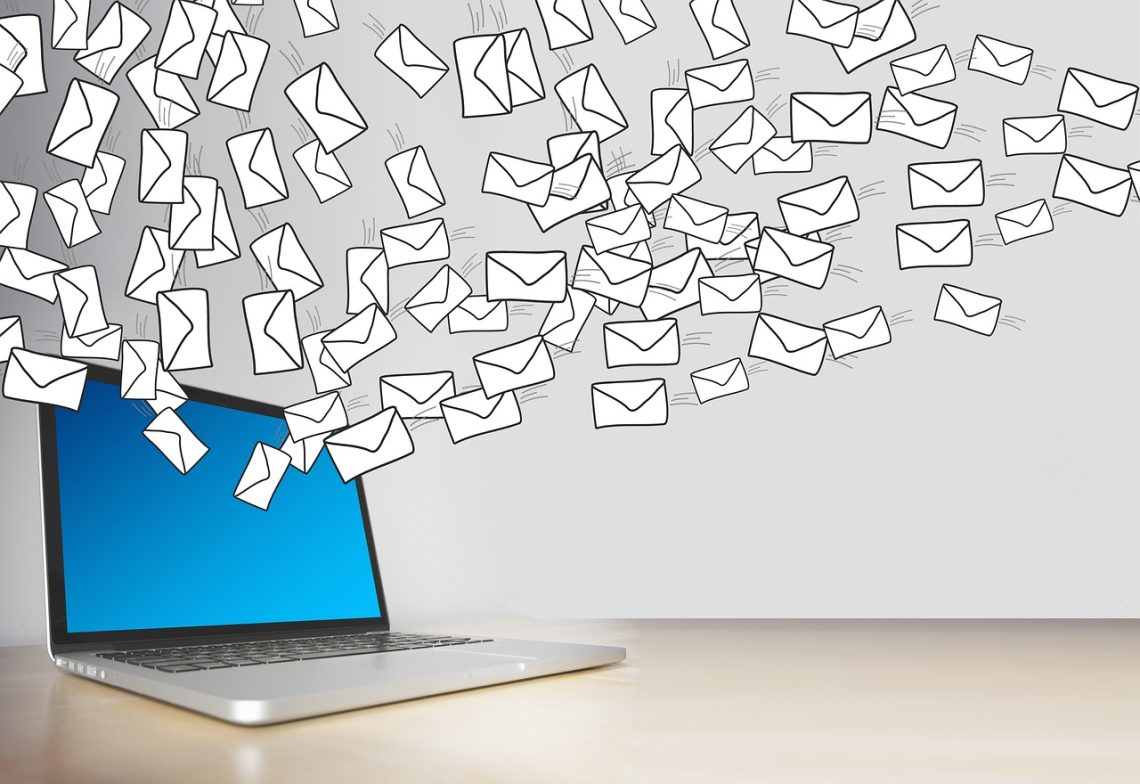
Illustrative stock photo: geralt / Pixabay.